

You type your domain with http:// in front and the site opens without the padlock. The browser warns that the connection isn’t secure, and Google treats it as a different address from the https version. If your domain already goes through Cloudflare, fixing it takes three switches on the same page.
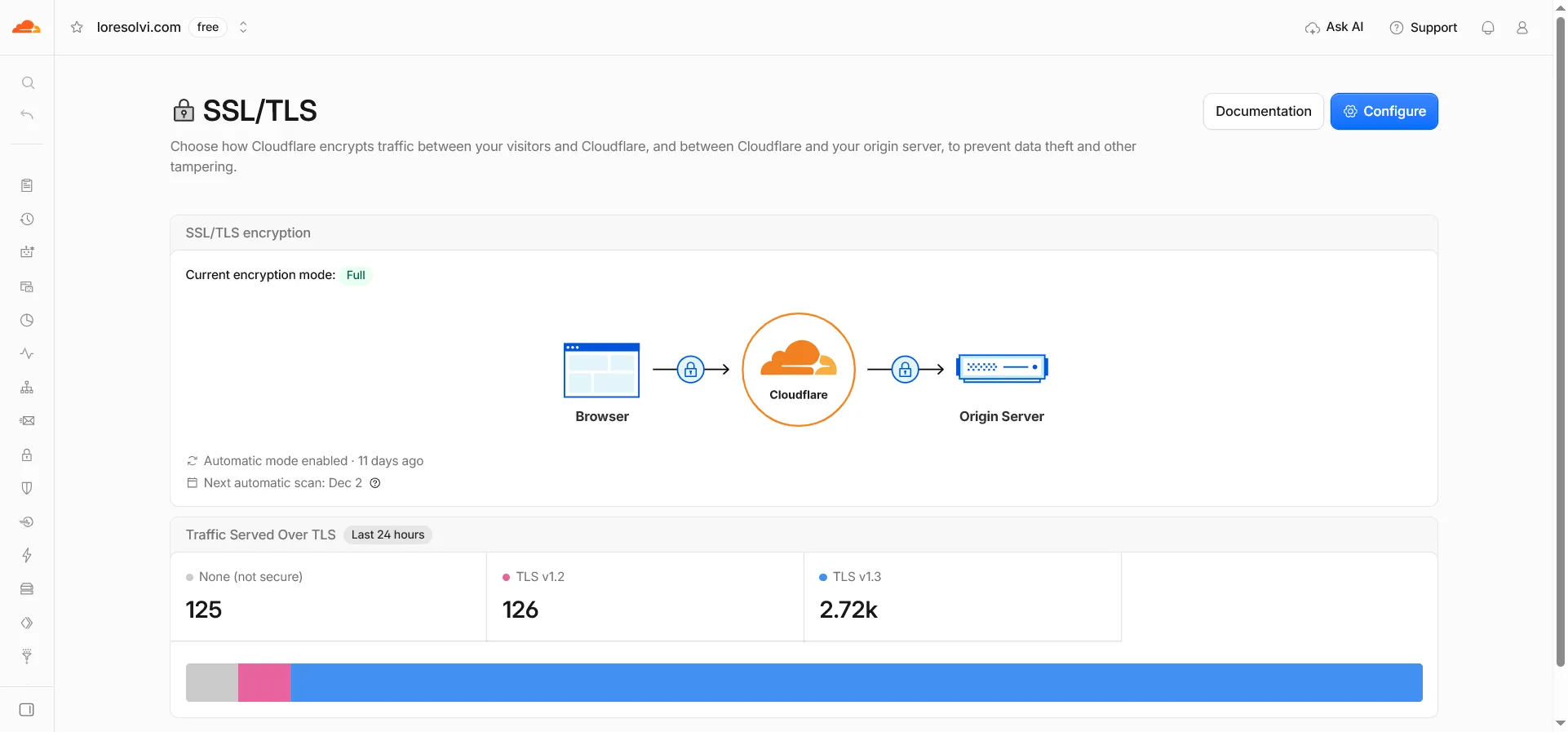
I have this turned on for this blog, and I went through every screen again on November 17, 2026, on the Free plan. That day Cloudflare counted 125 requests in 24 hours that had come in over plain http, and it sent them to the secure version.
Before you start
Your domain needs to be on Cloudflare with the proxy turned on, the orange cloud in DNS. If your site is on Cloudflare Pages, like this blog, that’s already the case.
In the left menu, open SSL/TLS. At the top you’ll see the current encryption mode. Mine says Full, which also encrypts the leg between Cloudflare and the server where the site lives. Don’t change it unless you know why. If you set it to Flexible and your server also forces HTTPS, you can end up in a redirect loop.
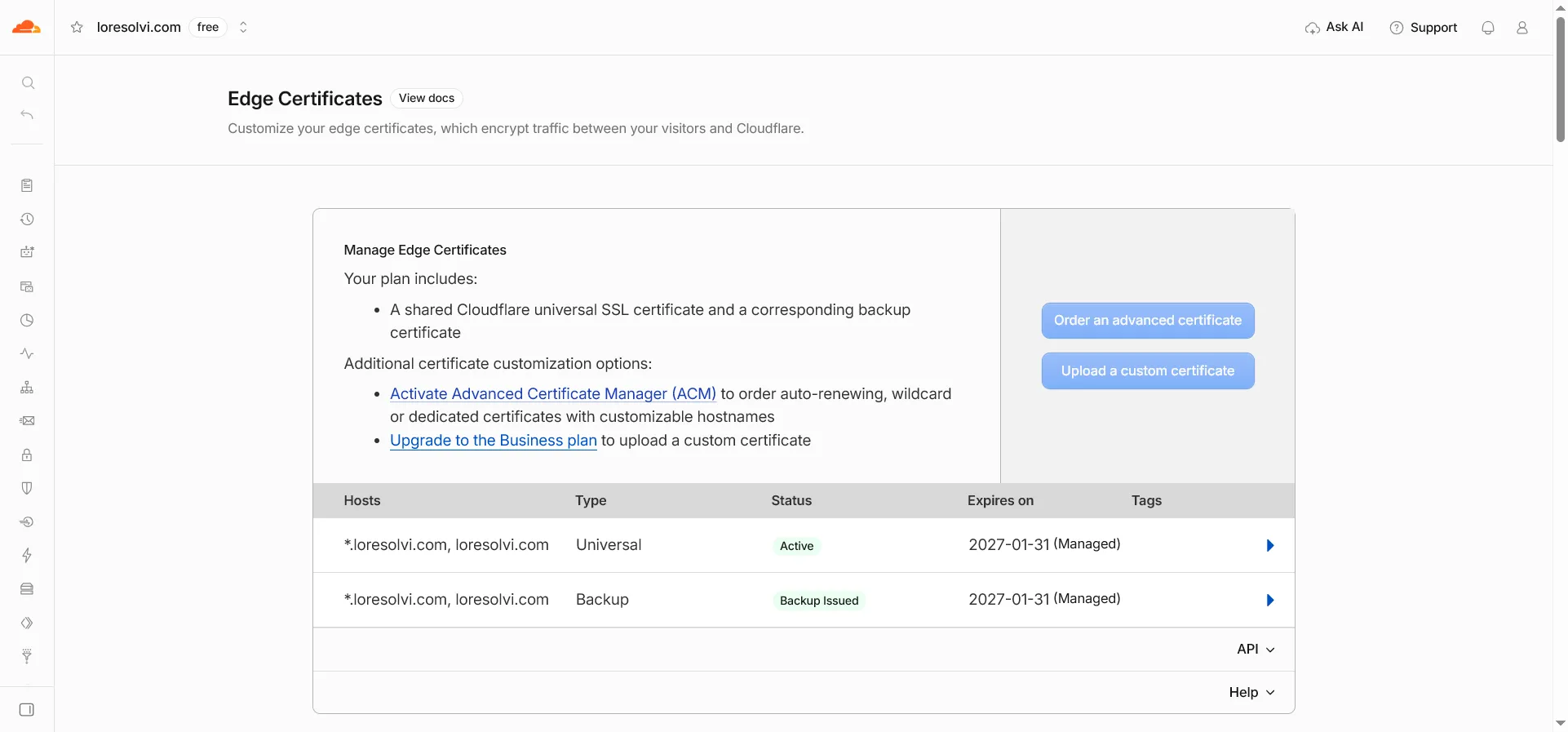
Inside SSL/TLS, open Edge Certificates. At the top is the certificate Cloudflare gives you for free, called Universal, with its status and expiry date. It renews on its own. If the status doesn’t say Active, wait for it to be issued before you go on.
Step 1. Always Use HTTPS
On the same Edge Certificates page, scroll down to Always Use HTTPS and turn it on. From then on, any address that starts with http is sent to the same address with https, keeping the path.
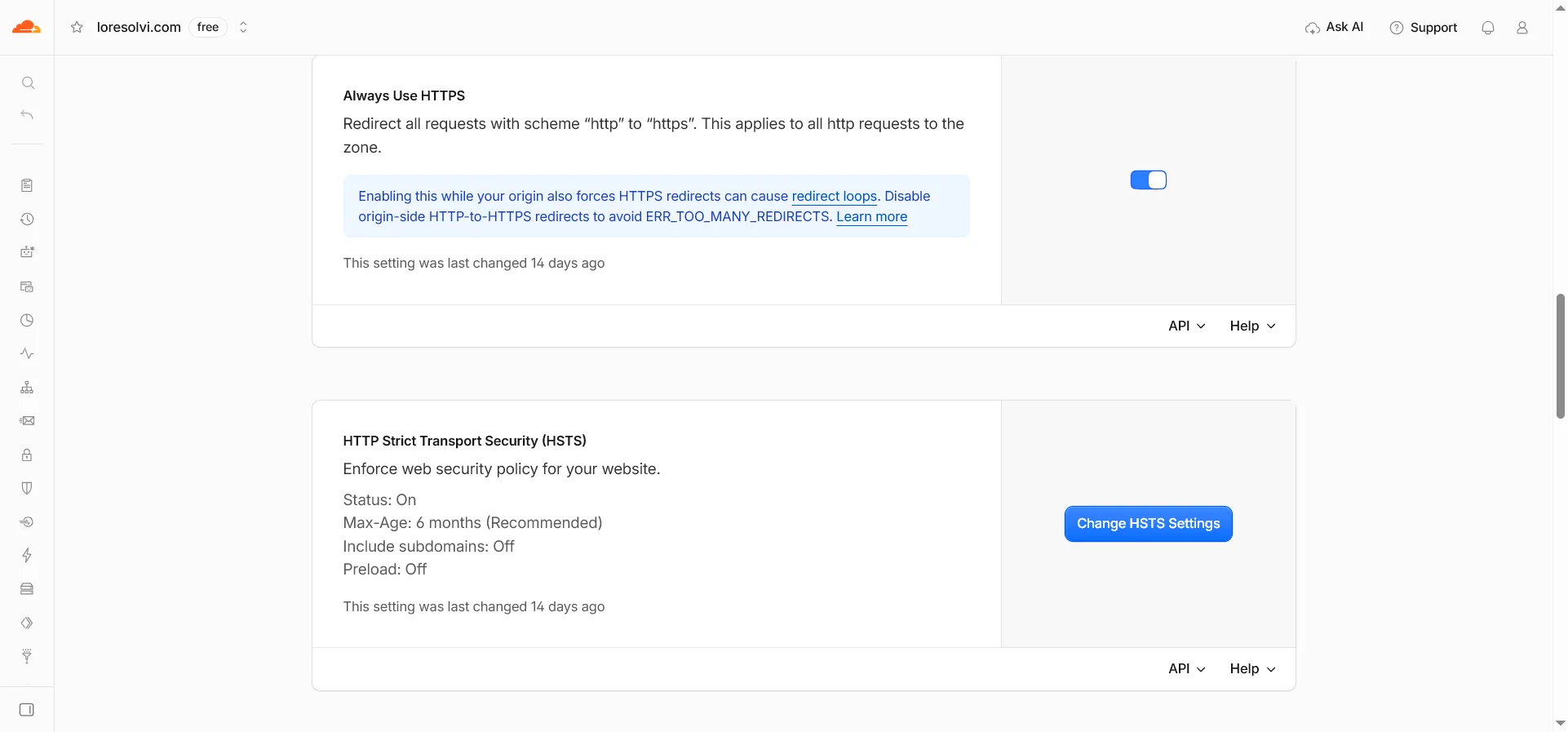
Under the switch Cloudflare shows a warning worth reading. If your origin server already does its own HTTP to HTTPS redirect, the two can clash and the browser shows ERR_TOO_MANY_REDIRECTS. In that case, remove the redirect on the server and keep only Cloudflare’s.
To check it, open a terminal and type curl -I http://your-domain.com/. For my blog, curl -I http://www.loresolvi.com/ answers 301, and the Location line shows the same address with https. If you don’t have a terminal, type the address with http:// in your browser and see if the padlock appears.
Step 2. Automatic HTTPS Rewrites
This one is further down the same page. It fixes mixed content, which happens when the page is secure but loads an image or a script over http. The browser blocks those files or drops the padlock.
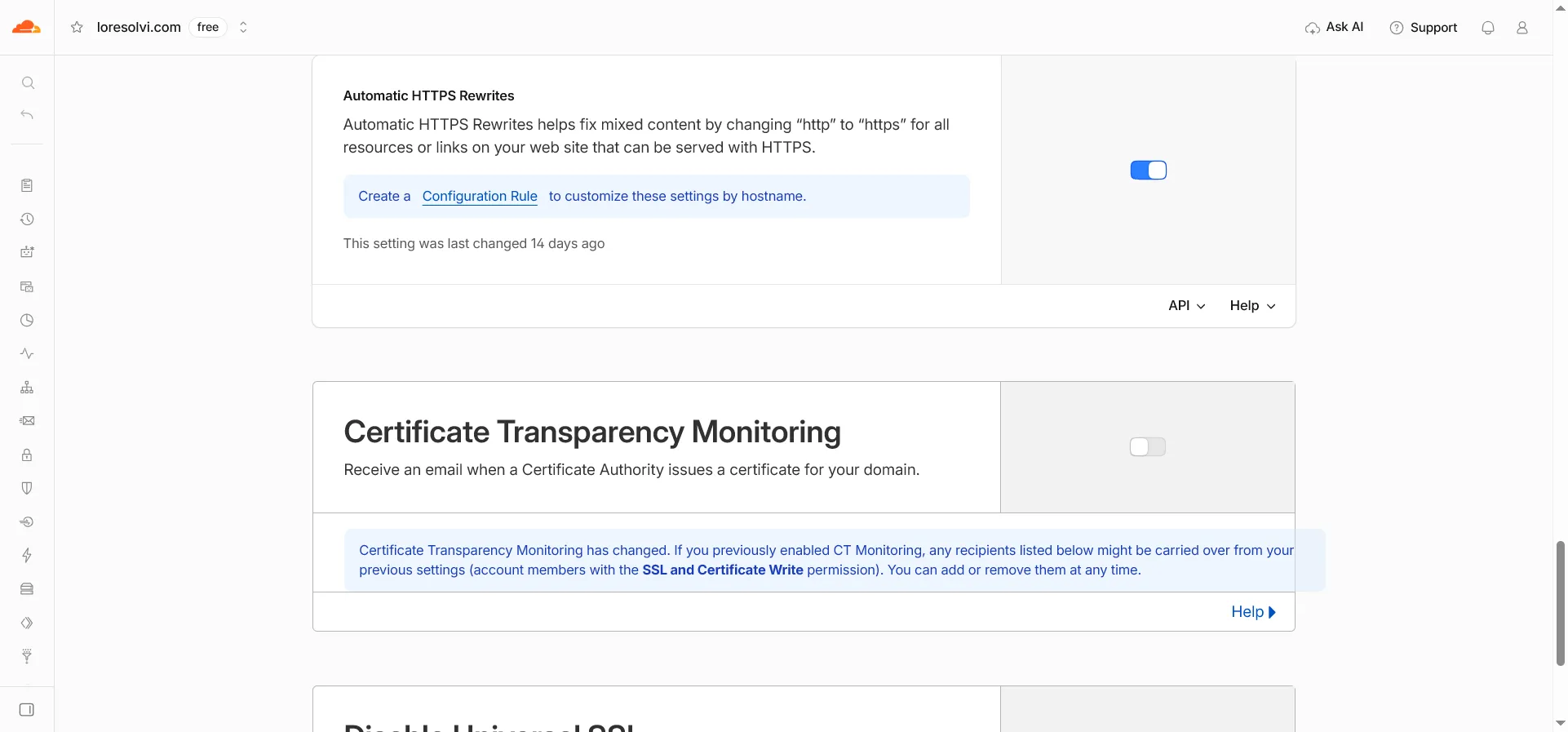
With it on, Cloudflare swaps those http links for https in your page before delivering it, as long as the other site supports https. It doesn’t touch your code, only what the reader receives. Fixing the links in your site is still the best option, but this covers whatever slips through.
Step 3. HSTS, carefully
HSTS tells the browser your site only works over HTTPS. After the first visit, the browser itself stops trying http for as long as you choose. It’s more secure, but it’s the only one of the three settings you can’t undo with one click.
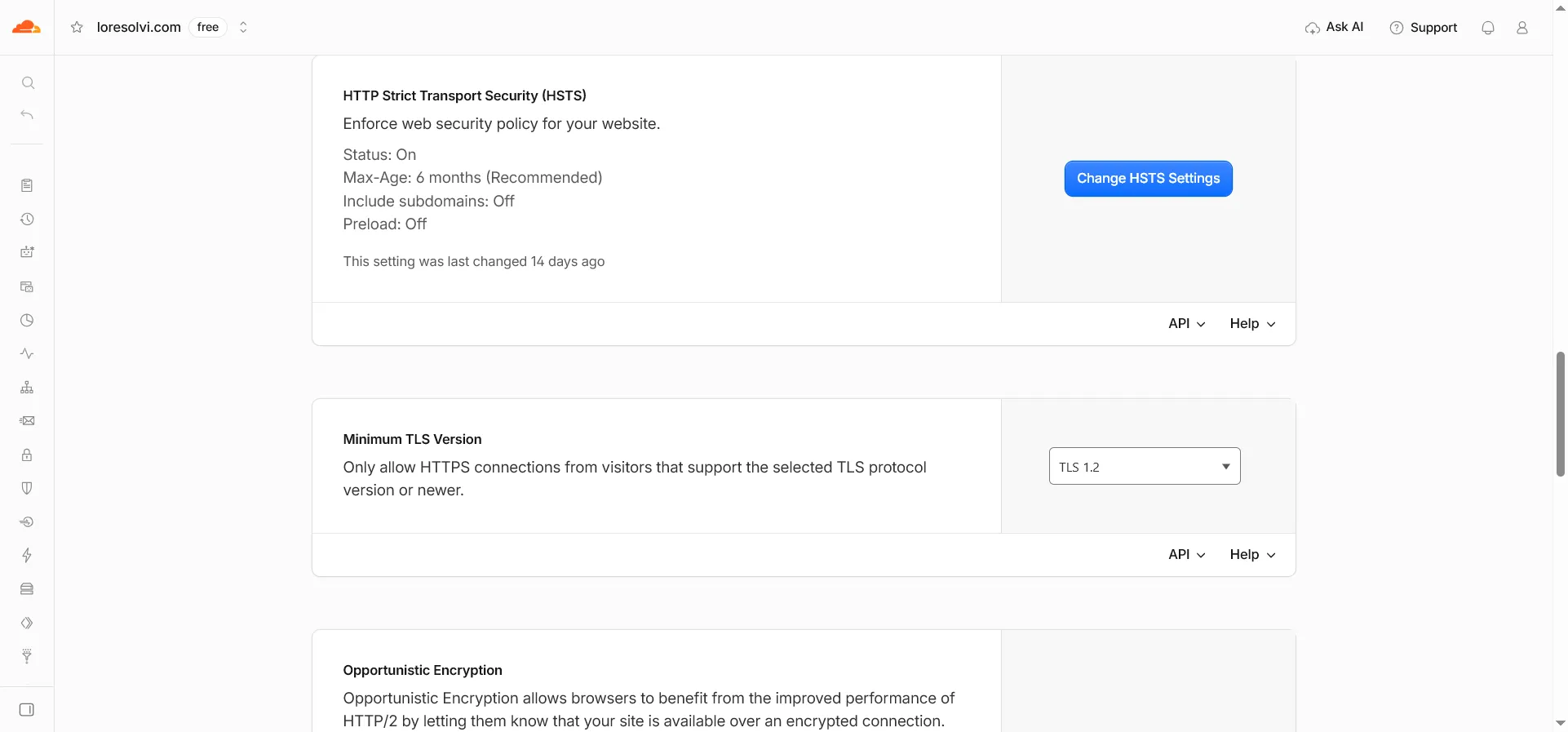
Click Change HSTS Settings and go through these options.
- Enable HSTS. Turn it on.
- Max Age. How long the browser remembers the rule. I kept 6 months, which Cloudflare marks as recommended.
- Apply HSTS policy to subdomains. Leave it off if any subdomain doesn’t work over HTTPS yet, because it would stop opening.
- Preload. Leave it off. According to Cloudflare’s documentation, it can make a site without HTTPS completely inaccessible, and getting on those lists requires a 12 month max age.
- Save.
The risk is time. If you ever remove HTTPS or your certificate fails, browsers that already visited your site won’t let people in until the max age runs out. Cloudflare’s documentation warns about it, and to turn it off it asks you to set the max age to 0 first and wait. That’s why it’s best to turn on HSTS only after steps 1 and 2 have been working for a few days.
How to tell everything is right
- The
http://address takes you tohttps://on its own, keeping the path. - The browser shows the padlock on every page, including pages with images.
curl -I https://your-domain.com/shows a Strict-Transport-Security line. On my blog it saysmax-age=15552000, which is 180 days.
If your site answers on several addresses, like with and without www, first decide which one is the right one. I explain the types of redirects in what a redirect is and which types there are.
Common questions
Does it cost anything? No. All three settings and the Universal certificate come with the Free plan.
Does it affect SEO?
For the better. Google uses HTTPS as one more signal, and with the 301 redirect the visits and links that came in over http add up on the secure version instead of being split.
Can I use the HTTP to HTTPS template in redirect rules instead of Always Use HTTPS? Yes, they do the same thing. Always Use HTTPS is one switch for the whole zone. A rule makes sense if you only want it to affect part of the site.
I turned on HSTS and regret it. What now? Set the max age to 0 on the same screen and save. Browsers that had the rule forget it the next time they visit the site over HTTPS, so keep HTTPS working in the meantime.
Comments
Write a comment