

You want someone else to see your site’s numbers. Maybe a colleague, someone helping with SEO, or a script that builds reports on its own. The easy way would be to hand over your Google password, and that’s exactly what you shouldn’t do. Search Console and Google Analytics 4 both let you add other accounts with limited permissions.
I needed this for my own blog, because I have a script that reads Search Console and Analytics data every week, and a script isn’t a person. For that you create a service account. I tested every step on November 17, 2026, with an example account that I deleted afterwards.
A person or a program
If you’re giving access to a person, you use their Google account email. It can be a Gmail address or a Google account created with another email. Search Console and Analytics only accept Google accounts.
I checked this with my blog’s contact address, which is just a forwarding address with no Google account behind it. Search Console refused to add it, and Analytics marked it in red. If someone uses a work email that isn’t on Google, they first need to create a Google account with that email.
For a program, on the other hand, you use a service account. It’s a Google account meant for software, with no password and no inbox. Its email ends in .iam.gserviceaccount.com, which is why people wonder where such a strange address came from. It comes from Google Cloud.
Creating a service account
You only need this to give access to a program. For a person, skip to the Search Console part.
- Go to Google Cloud and pick a project. If you don’t have one, create one. It’s free.
- Open the menu and go to IAM & Admin, then Service Accounts.
- Click Create service account.
- Type a name that tells you what it’s for, like my blog reader.
- Click Create and close. To read Search Console and Analytics it doesn’t need any role inside Google Cloud.
As you type the name, Google builds the email right under the field. It’s the name with hyphens, an at sign, your project ID and .iam.gserviceaccount.com at the end. That’s the email you’ll paste into Search Console and Analytics.
The program also needs a key to identify itself to Google. You create it in the account’s Keys tab with Add key, and it downloads as a JSON file. That file works like a password. Keep it outside your project folder and never push it to GitHub. Google even shows a warning on that tab recommending you avoid downloading keys when you can.
Giving access in Search Console
- Open Search Console and pick your property.
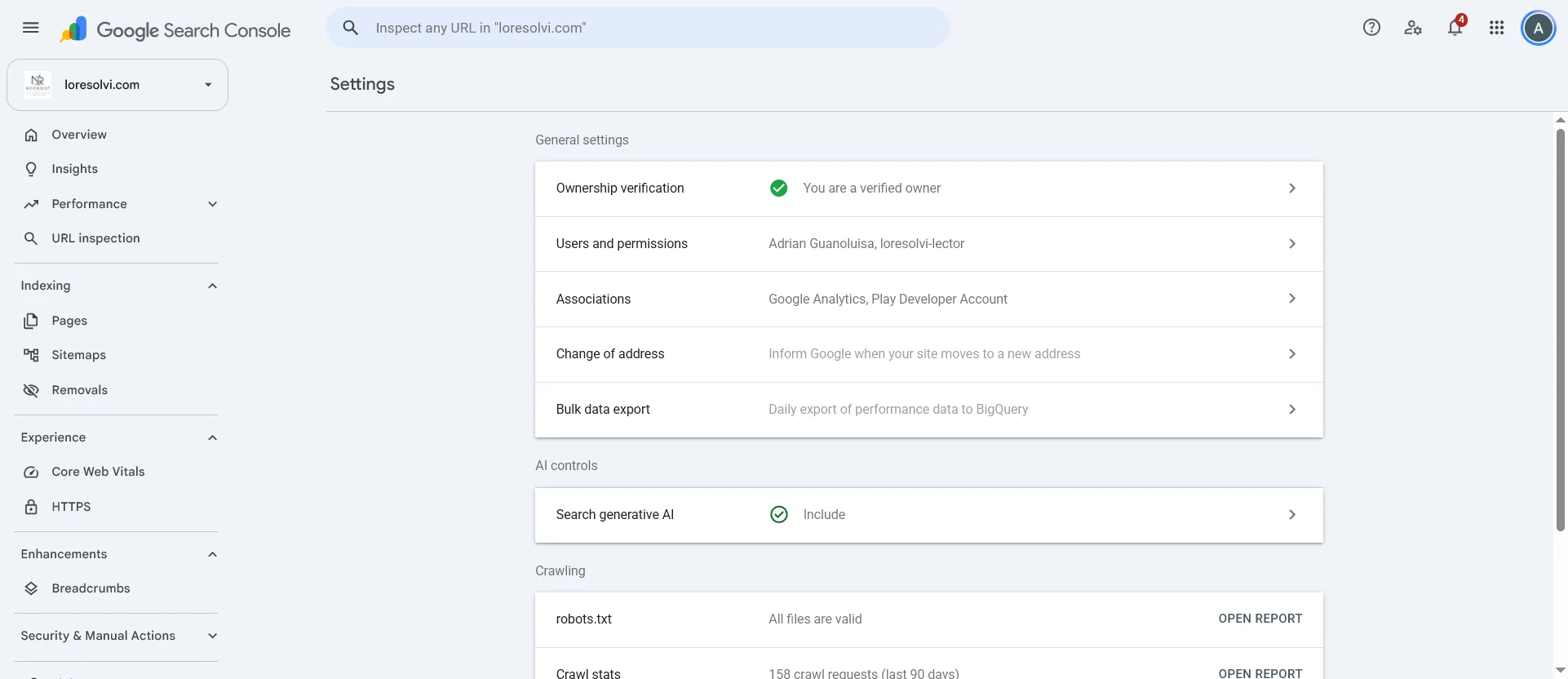
- Go to Settings, at the bottom of the left menu.
- Open Users and permissions.
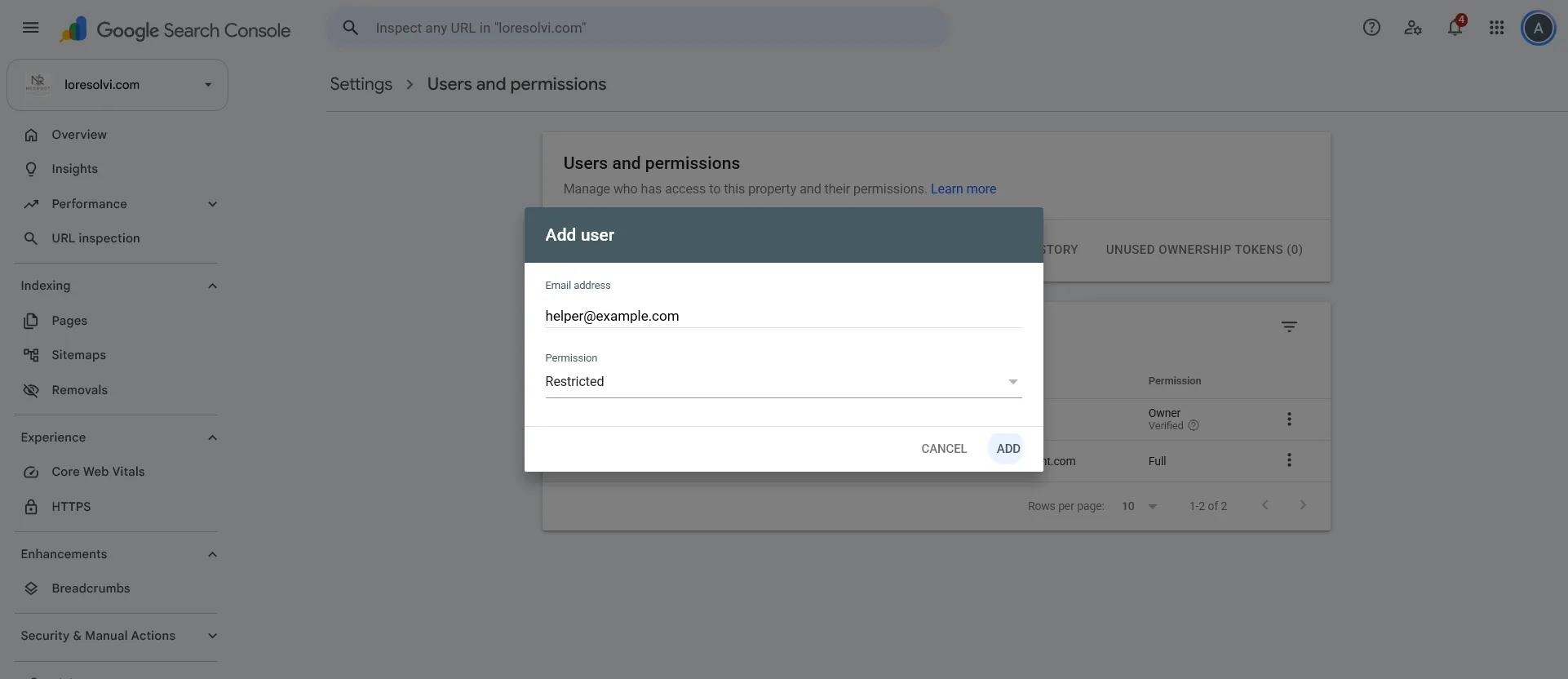
- Click Add user.
- Paste the person’s or the service account’s email.
- Choose a permission and click Add.
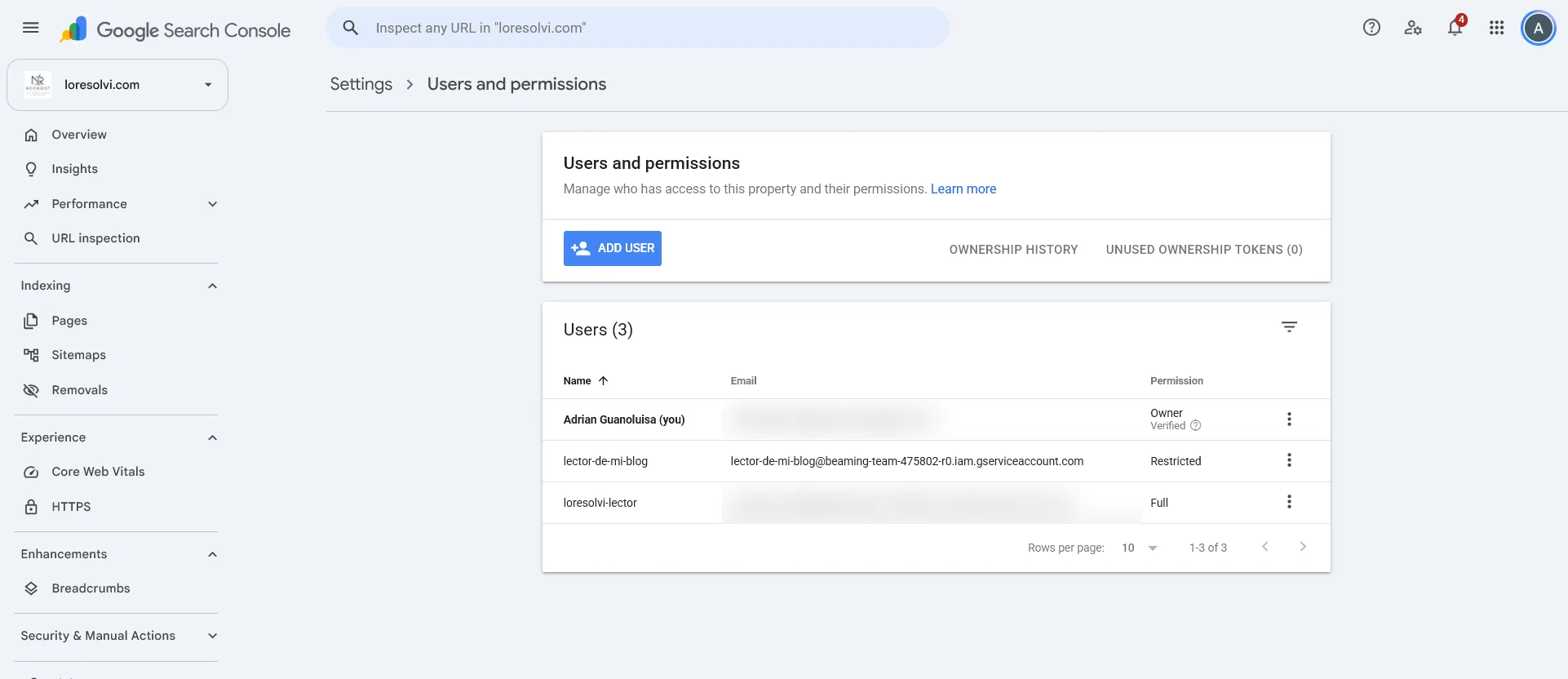
There are three permissions, and according to Google’s help page the owner controls everything and can add or remove others. Full permission lets someone see all the data and take some actions. Restricted only lets them view most of the data.
For someone who only needs to look, or for a script that reads reports, choose Restricted. While checking my own blog for this post I noticed I had given my script Full. It didn’t need it, since it only reads the performance report, so I lowered it. Here’s how, further down.
Giving access in Google Analytics 4
This is where I tripped up. I added the service account to Search Console, ran the script, and Analytics still said it had no permission. Each tool keeps its own user list, so you have to add the account in both.
- Open Google Analytics and click Admin, the gear at the bottom left.
- Under the property settings, open Property access management.
- Click the blue plus button and choose Add users.
- Paste the email. For a service account, uncheck Notify new users by email, since nobody will read it.
- Choose the Viewer role and click Add.
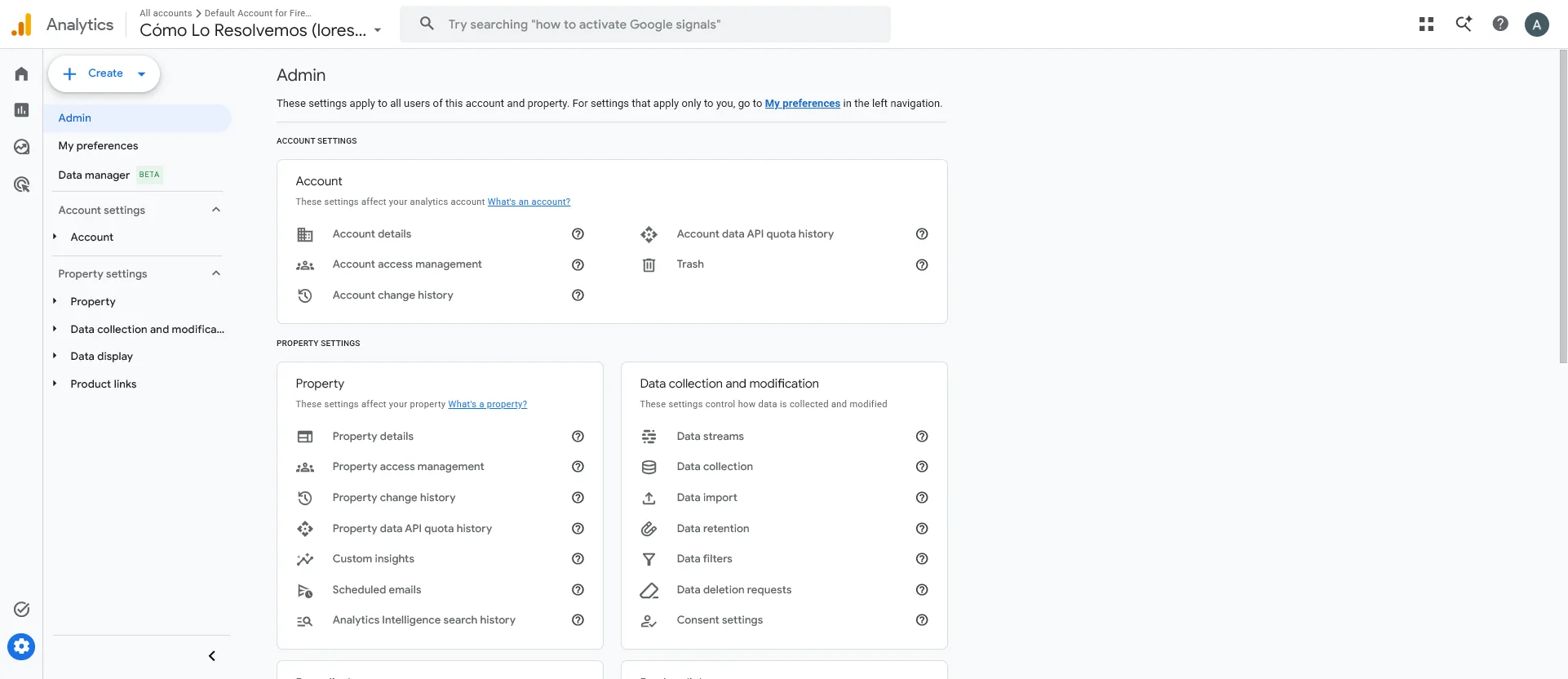
On that screen there are two options that look alike. The account one gives access to every property you have inside it. The property one gives access to just that site. For a blog, use the property one.
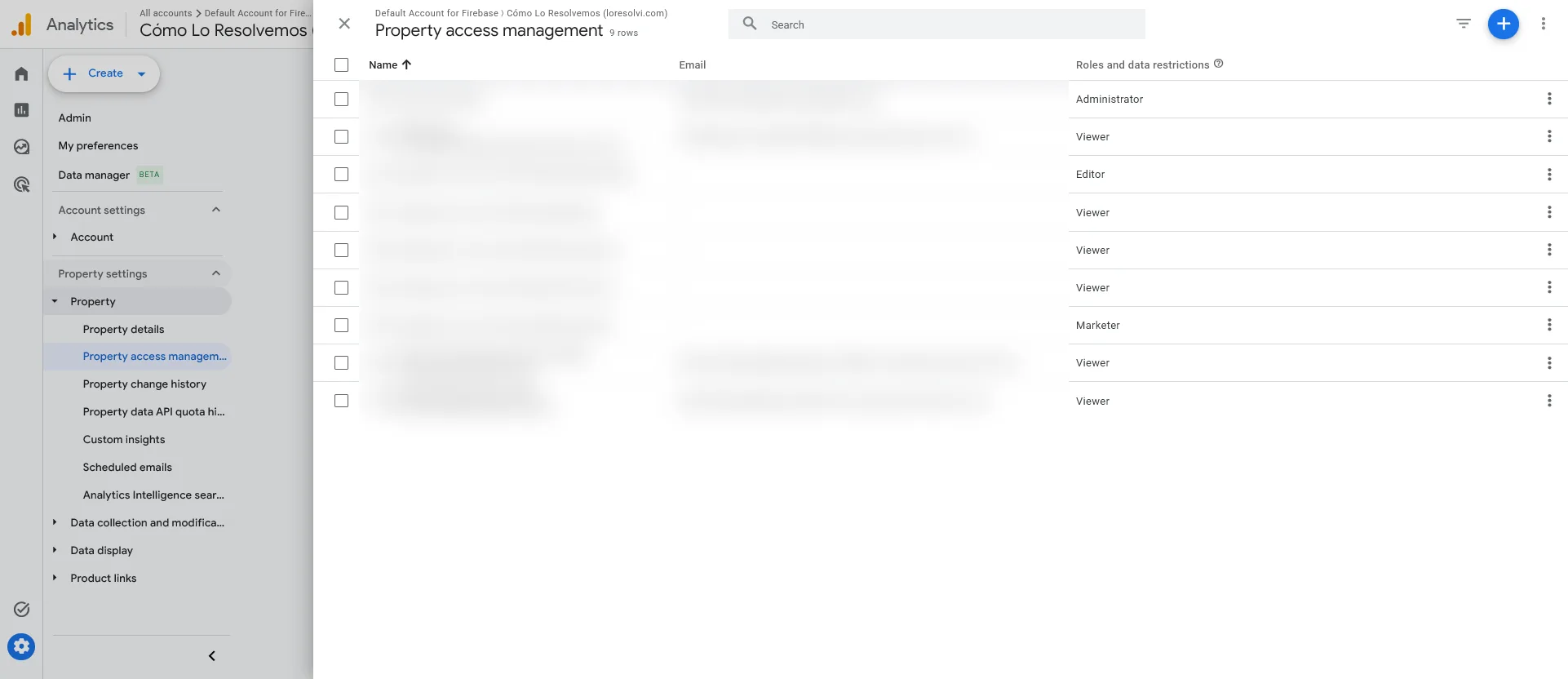
The Viewer role lets someone see the data and the property’s settings without changing anything. Analyst and Marketer let them create things, and Editor and Administrator can change the property. For reading reports, Viewer is enough.
How to lower someone’s permission
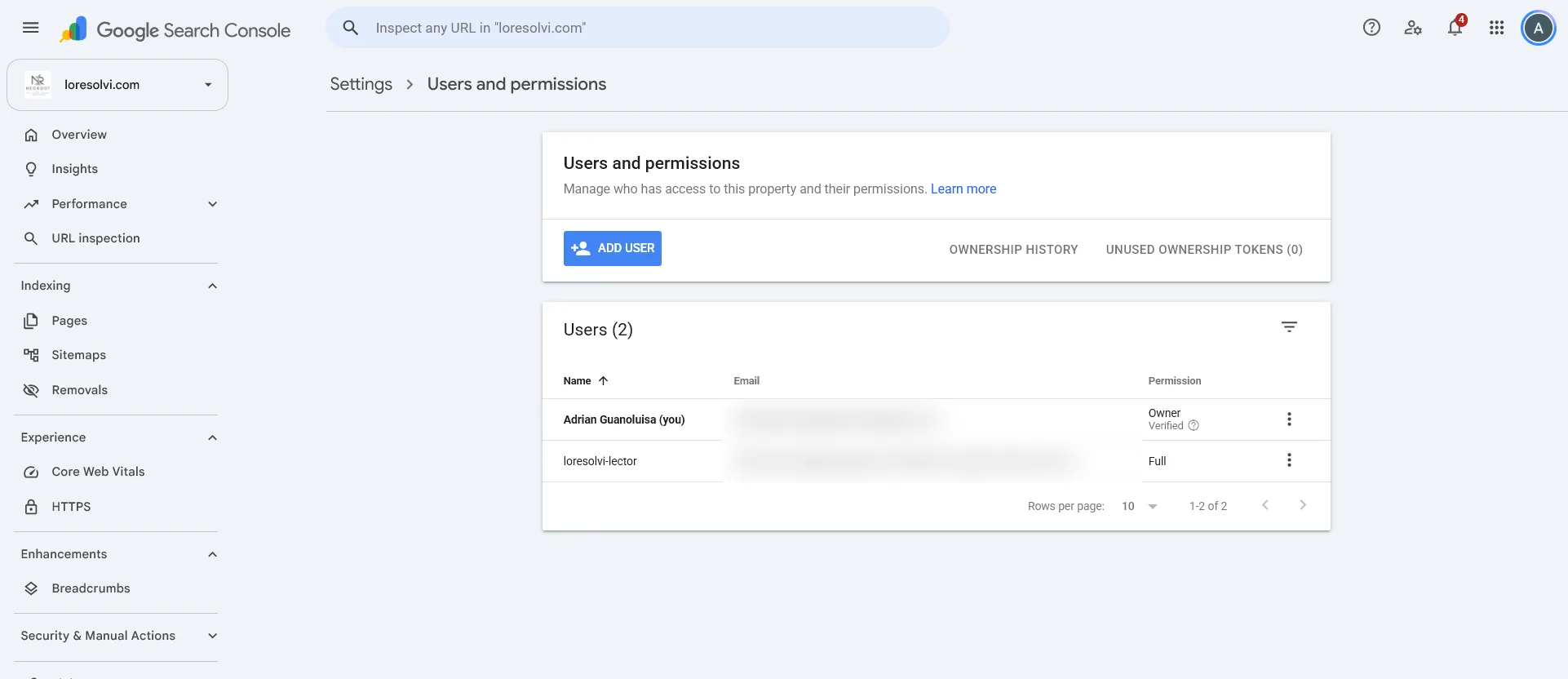
You don’t need to remove someone and add them again to change their permission. In Search Console, under Users and permissions, click the three dots on their row and choose Change permissions. A window opens with the current permission. Pick the new one from the dropdown and click Save.
That’s what I did with my script’s account. It went from Full to Restricted, and then I ran the script to check that it could still read the Google search data. It worked just the same, because reading data was all it ever needed.
In Analytics I didn’t have to change anything, because that account had the Viewer role from the start.
How to remove access
Removing it is just as easy, and it’s worth doing when someone stops working with you or when you retire a script.
In Search Console, under Users and permissions, click the three dots on the row and choose Remove access, then confirm. In Analytics, under Property access management, click the three dots on the row, choose Remove access and confirm.
If the service account is no longer used, delete it in Google Cloud too. Check its box under Service Accounts, click Delete and confirm. That way its key stops working even if someone still has a copy.
Frequently asked questions
What’s the difference between Restricted and Full? Both let you see the property’s data, and Full also lets you take some actions in Search Console. Neither can add or remove users. Only an owner can do that.
Can I remove access later? Yes, whenever you want and without telling anyone. From Users and permissions in Search Console and from Property access management in Analytics.
Does the person I add get an email? In Analytics they do if you leave the notify box checked. In Search Console they’ll just see the property next time they sign in. A service account doesn’t need any notice.
Do I have to pay for Google Cloud to create a service account? No need to pay anything. Creating the project and the service account is free. What you pay for in Google Cloud are other services, like servers or databases.
Comments
Write a comment