

You install Google Analytics 4, open it, and the first thing you look at is Realtime. If nobody happens to be on your site at that moment, it says zero and it feels like your blog gets no visits at all. That happened to me with this blog. I only ever looked at that screen and thought Analytics wasn’t counting anything, when the data was somewhere else.
In GA4 you need to know where to look, and there are three settings worth fixing because the defaults aren’t great. I went through all of it on November 17, 2026, on this blog’s property.
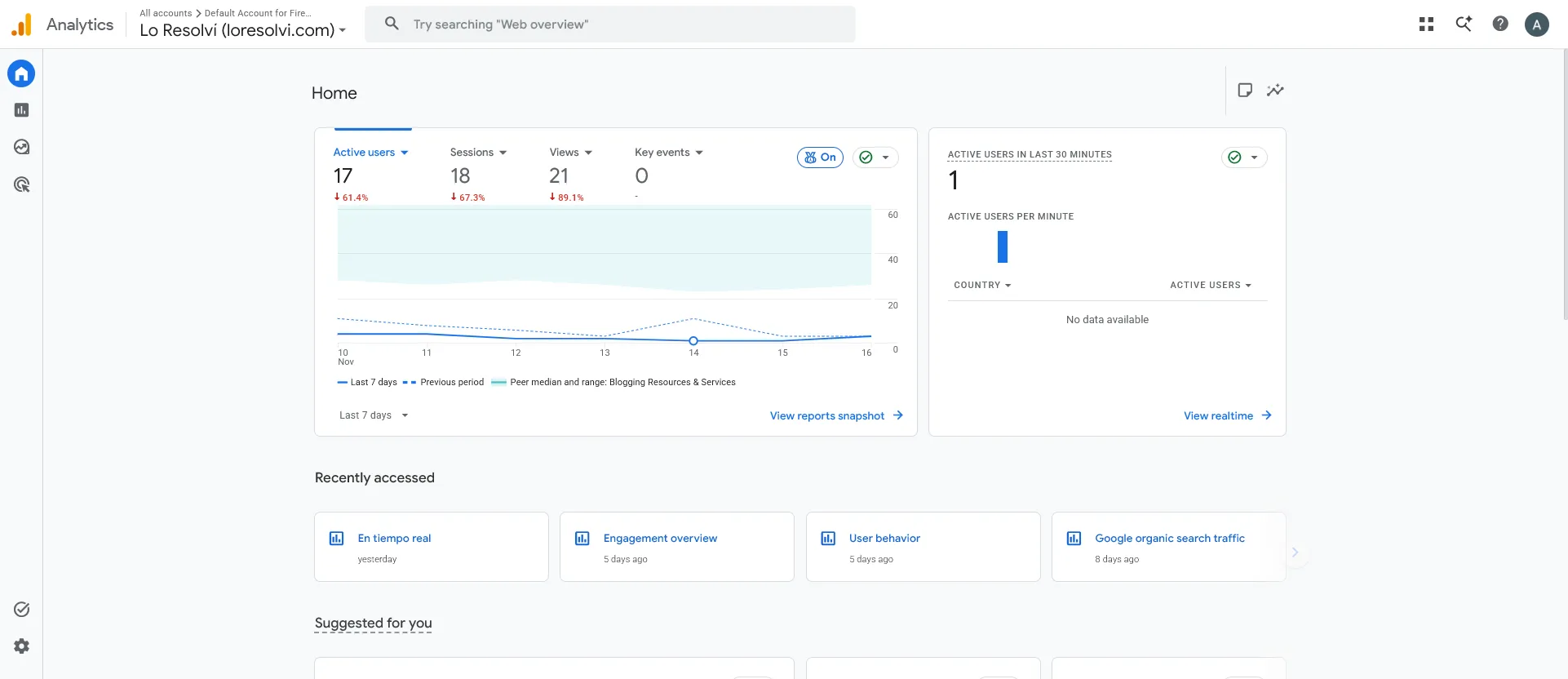
Realtime isn’t your history
Realtime only shows who has been on your site in the last 30 minutes. It’s useful to check that the tag works, for example by opening your blog on your phone and watching one user appear. It won’t tell you how many visits you had yesterday or this week.
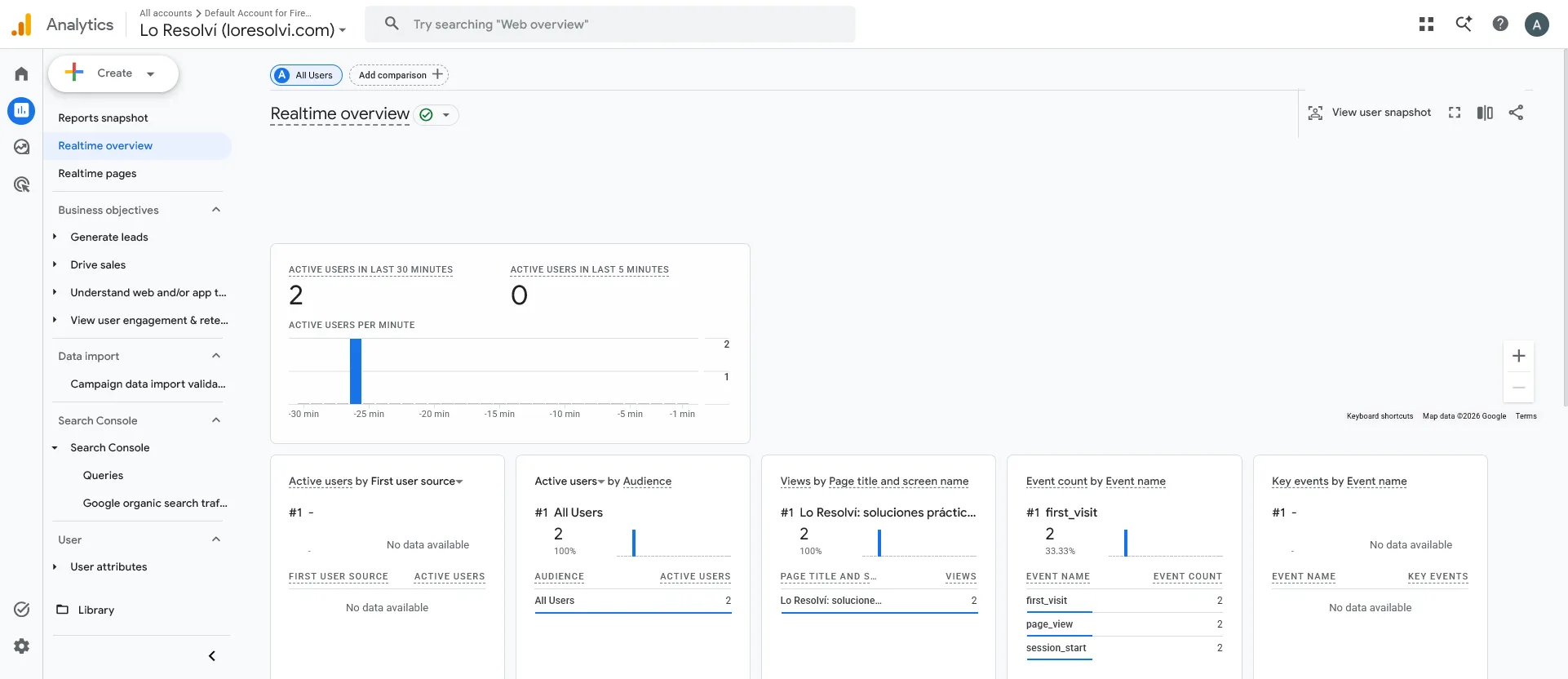
Where to see visits for each day
The quickest way is the Home page, the little house at the top left. The first card shows Active users, Sessions, Views and Key events, with a line that goes day by day. Below the card you can change the period, and the dotted line is the previous period for comparison.
- Open Analytics and click Home.
- On the top card, at the bottom left, choose Last 7 days.
- Hover over the line to see the number for each day.
- Click Active users, Sessions or Views to change what the line shows.
That’s how I saw this blog had 4, 4, 2, 2, 1, 1 and 3 users between November 10 and 16. Not much, but it’s real, and none of it showed up in Realtime.
Users, sessions and views aren’t the same thing. A user is one person on one browser. A session is each time they come in, and a view is each page they open. If someone visits twice and reads three posts, that’s one user, two sessions and three views.
The date picker, and why today is missing
In Reports, at the top right, there’s the date picker. By default it shows the last 28 days, and if you look closely, the range ends yesterday. Today isn’t included because its data is still being processed. If you want to see it anyway, pick Today from the list, but the number can still change.
The same list has Yesterday, This week, Last week, the last 7, 28, 30 and 90 days, and Custom to pick your own dates on the calendar. At the bottom there’s a Compare switch that puts another period side by side.
Which report to open for what
Under Reports, the Reports snapshot gathers the main numbers for the period. Active and new users, average engagement time, the most viewed pages and where people came from.
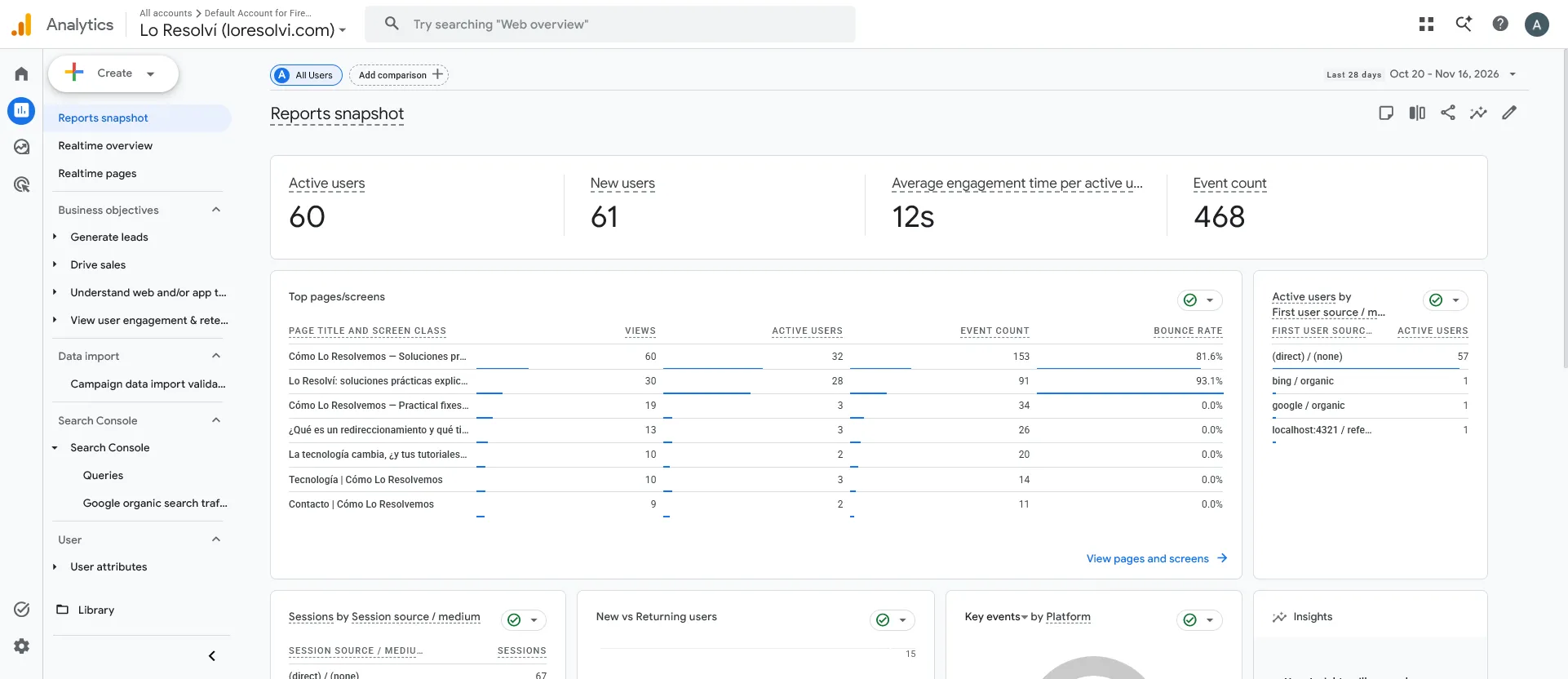
In the Reports menu, in the section about understanding web traffic, you’ll find Overview, Demographic details and Pages and screens. Pages and screens lists each post with its views. Demographic details has countries and cities.
That’s where I found something odd. In the week of November 10 to 16, Council Bluffs showed up as the city with the most users, 7 of them. It’s a small town in Iowa where Google runs a data center, so those aren’t readers but programs passing through. You can’t remove them completely, but it’s good to know before you celebrate.
Why Analytics counts less than other tools
If you compare Analytics with your host’s stats or with Cloudflare, Analytics almost always shows less. One reason is that many ad blockers stop it from loading. The other depends on how you installed it.
On this blog the Analytics tag loads when the reader taps the page, scrolls, or after 4 seconds. I did that so the blog opens faster. The trade-off is that anyone who arrives and leaves before that isn’t counted. I’m fine with it, but you have to keep it in mind when reading the numbers.
Three settings worth checking
They’re all in Admin, the gear at the bottom left, in the property column. Changing them doesn’t delete anything you already have.
Time zone
Property details has the reporting time zone. It decides when each day ends. If your blog is in Ecuador and the property is set to US time, a visit at 11 p.m. lands on the next day. Mine was already on Ecuador time.
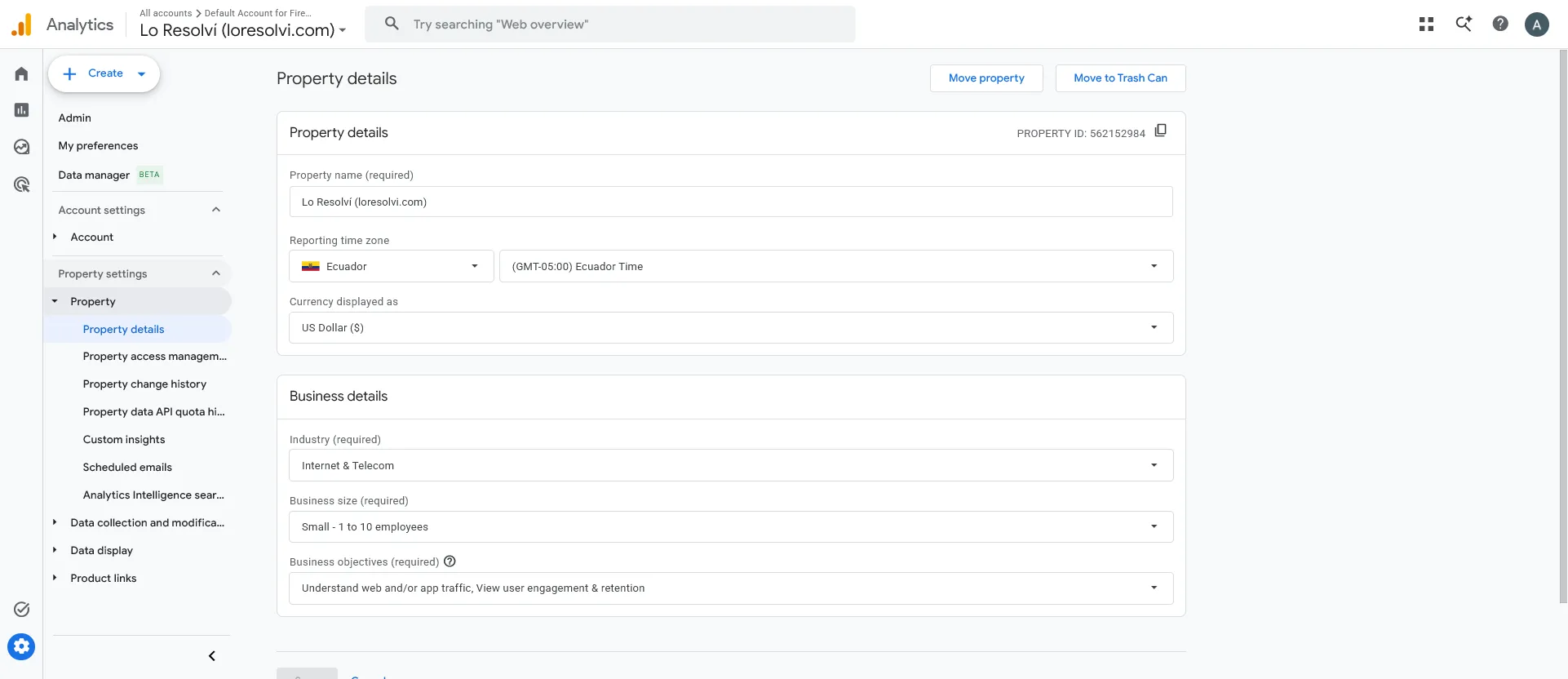
On that same screen I renamed the property. It still had the blog’s old name, and now it says Lo Resolví. Only you see that name in the dashboard, it doesn’t change anything on your site.
How long data is kept
Under Data collection and modification, open Data retention. Event data was set to 2 months, which is the GA4 default. I raised it to 14 months and clicked Save.
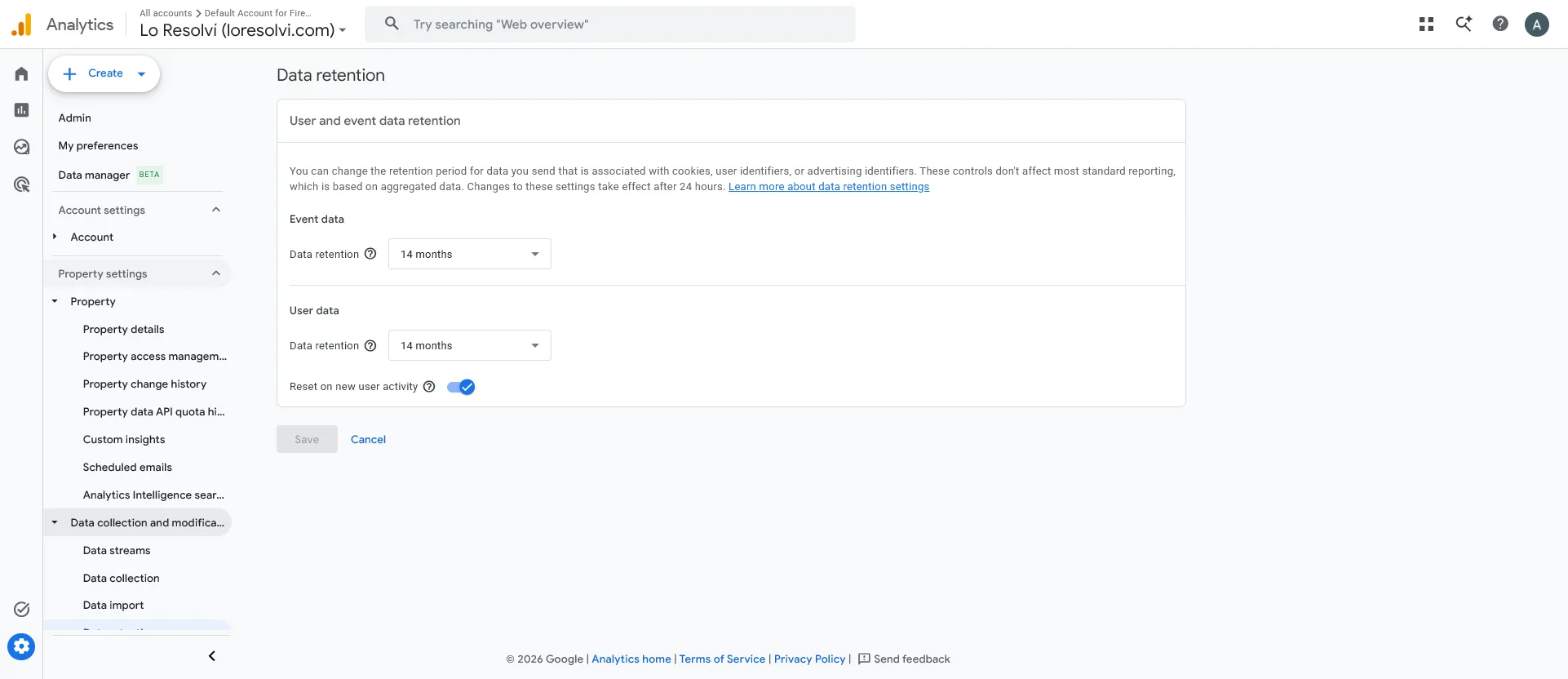
According to the text on that screen, this setting doesn’t affect most standard reports, because those use aggregated data. It does affect explorations, the custom analyses. With 2 months, an exploration from three months ago comes out empty. The change takes 24 hours to apply.
Leaving your own visits out
Every time you open your blog to check something, Analytics counts you as one more reader. With few visits, that skews the numbers a lot. The fix has two parts. First you tell Analytics what your IP address is, then you turn on the filter that excludes that traffic.
For the first part:
- In Admin, open Data streams and click your site’s stream.
- Under Google tag, click Configure tag settings. The tag settings open inside Tag Manager.
- Open Settings and click Show more.
- Click Define internal traffic and then Create.
- Give it a name, like My home, and leave internal as the traffic_type value.
- Under IP addresses, enter your address and click Create at the top right.
To find your IP, the form has a link that tells you what your IP address is. I added two conditions, because my connection has an IPv4 address and an IPv6 one, and the browser can use either. I entered the IPv4 on its own with /32 at the end. For the IPv6 I used my home’s range, which is the first four parts of the address with /64 at the end.
For the second part, go back to Admin, open Data collection and modification, then Data filters. GA4 already comes with a filter called Internal Traffic, but it starts in Testing, and in that state it doesn’t exclude anything. Open it, scroll down to Filter state, choose Active and click Save.
Analytics asks you to confirm and warns you about two things. Whatever the filter leaves out is gone for good, and it doesn’t change past data. That’s why you should only turn it on once your IP rule exists. After you confirm, the list shows Active.
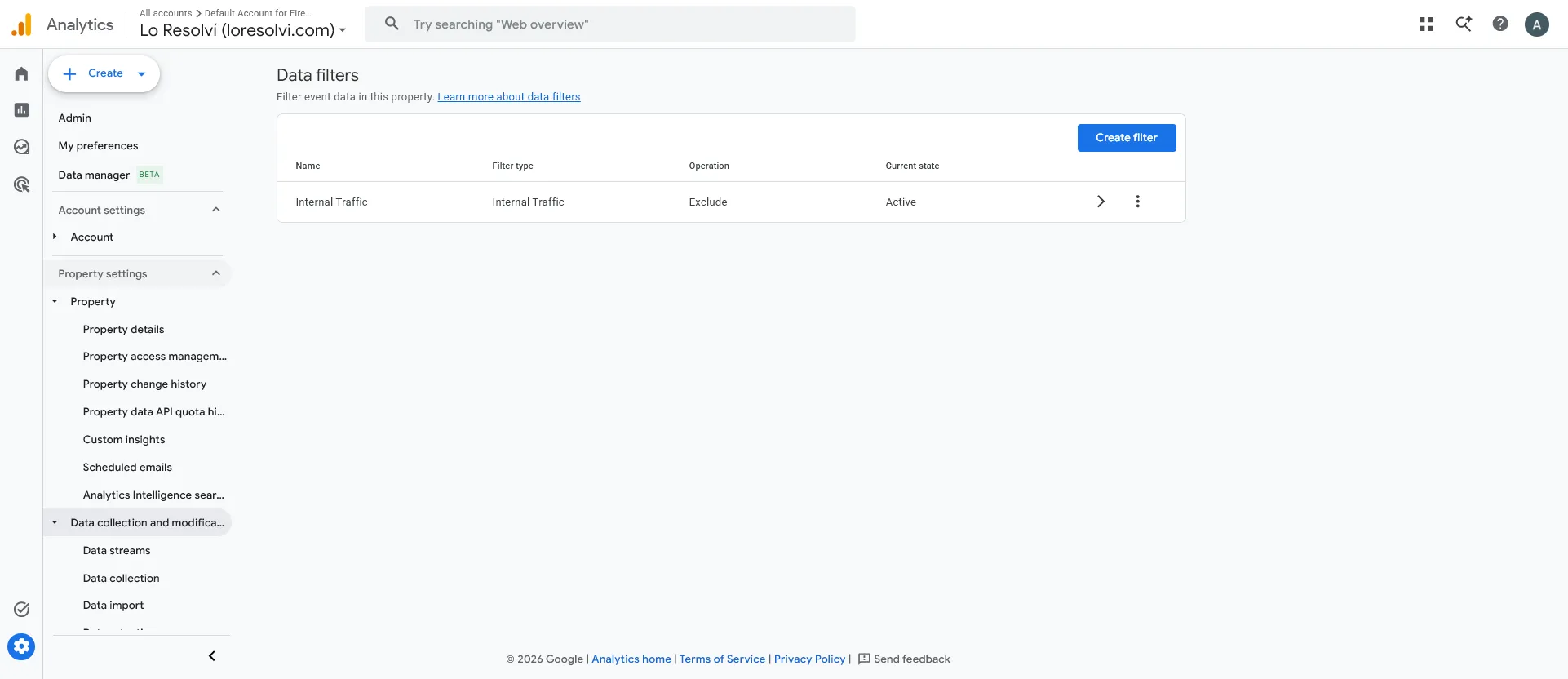
One limit worth knowing. Many home connections change their IP every so often, and then the rule stops recognizing you. If your own visits start showing up again, check your IP and update the rule.
What I kept wondering
Why do I see people in Realtime but not in reports? Because reports lag behind and end yesterday by default. Today shows up later, once Analytics finishes processing it.
What’s an active user? Someone who had activity on your site during that period. For a blog, in practice, it’s the number of different people who visited.
Why doesn’t Analytics count me when I visit my own blog? If you turned on the internal traffic filter, that’s exactly what should happen. If you didn’t, it may be an ad blocker, or you left before the tag loaded.
If I change data retention, do I get back what was deleted? No. From the moment you change it, data is kept longer, but anything older than the 2 months is gone.
Comments
Write a comment