

Almost everything written about search engines is about Google, and Bing ends up as a footnote. But Bing sends visitors too. It’s the default in Windows and Edge, and other search engines like Yahoo get their results from it. If your site is already in Search Console, adding it to Bing takes a couple of minutes.
I did it for this blog on November 3, 2026, and went through every step again on November 17 to take the screenshots. Bing has its own dashboard, Bing Webmaster Tools, and it also accepts pings through IndexNow every time you publish something.
Importing your site from Search Console
Bing gives you two ways to add a site. The manual one asks you to prove the site is yours with a file, a meta tag or a DNS record. The other one imports the sites you already verified in Google, and that’s the one I’d pick if you already use Search Console.
- Go to Bing Webmaster Tools and sign in with a Microsoft, Google or Facebook account.
- If it’s your first site, the start page shows both options. If you already have one, open the site picker at the top left and click Add a site.
- In the Google Search Console box, click Import.
- Google asks you to let Bing read your Search Console properties. Allow it with the same Google account that owns your site.
- Check the sites you want to bring over and confirm.
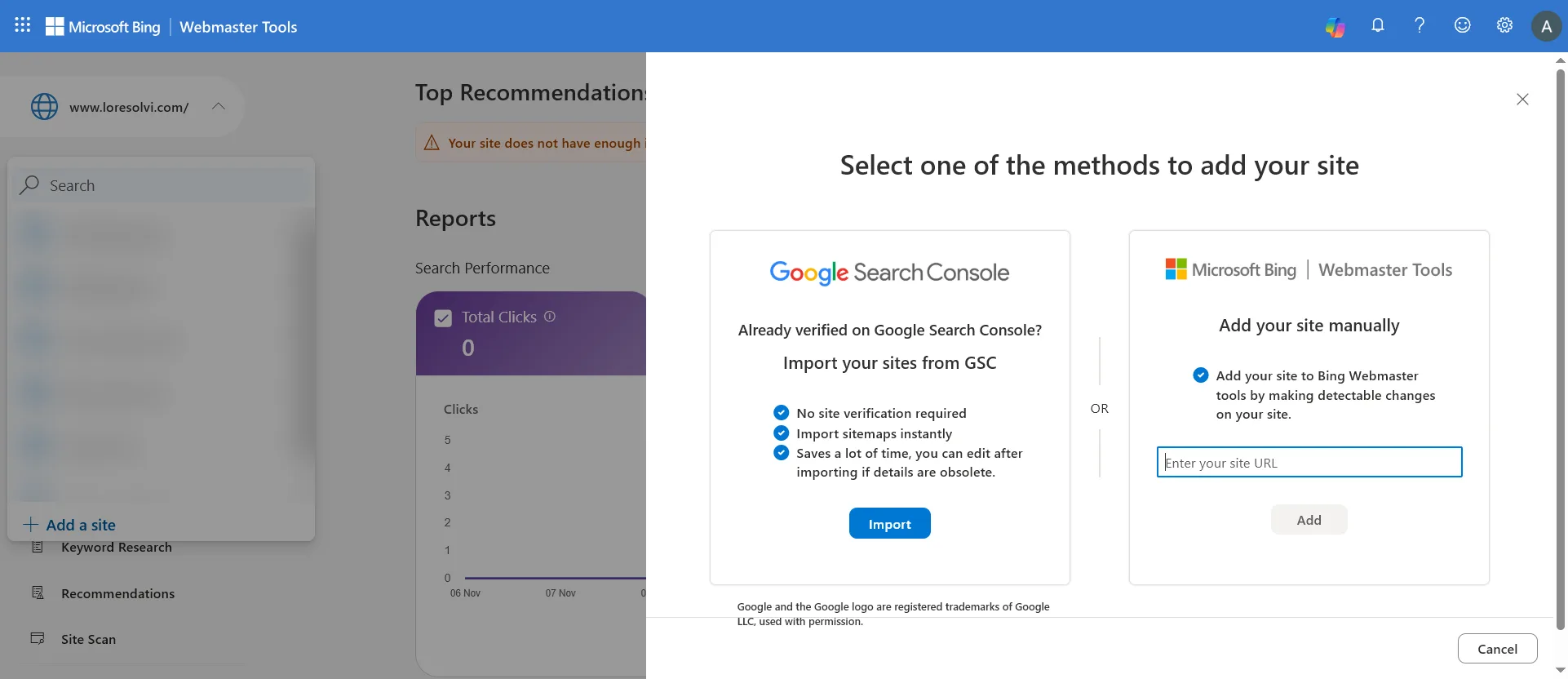
As you can see, Bing promises three things in that box. No site verification required, sitemaps imported instantly, and details you can edit later. That’s how it went for this blog. The site was added without touching DNS, and the two sitemaps I had in Search Console showed up in Bing already submitted.
Checking that Bing read your sitemap
In the left menu, open Sitemaps. You’ll see each sitemap with the date it was submitted, the last time Bing crawled it, its status and how many URLs it found.
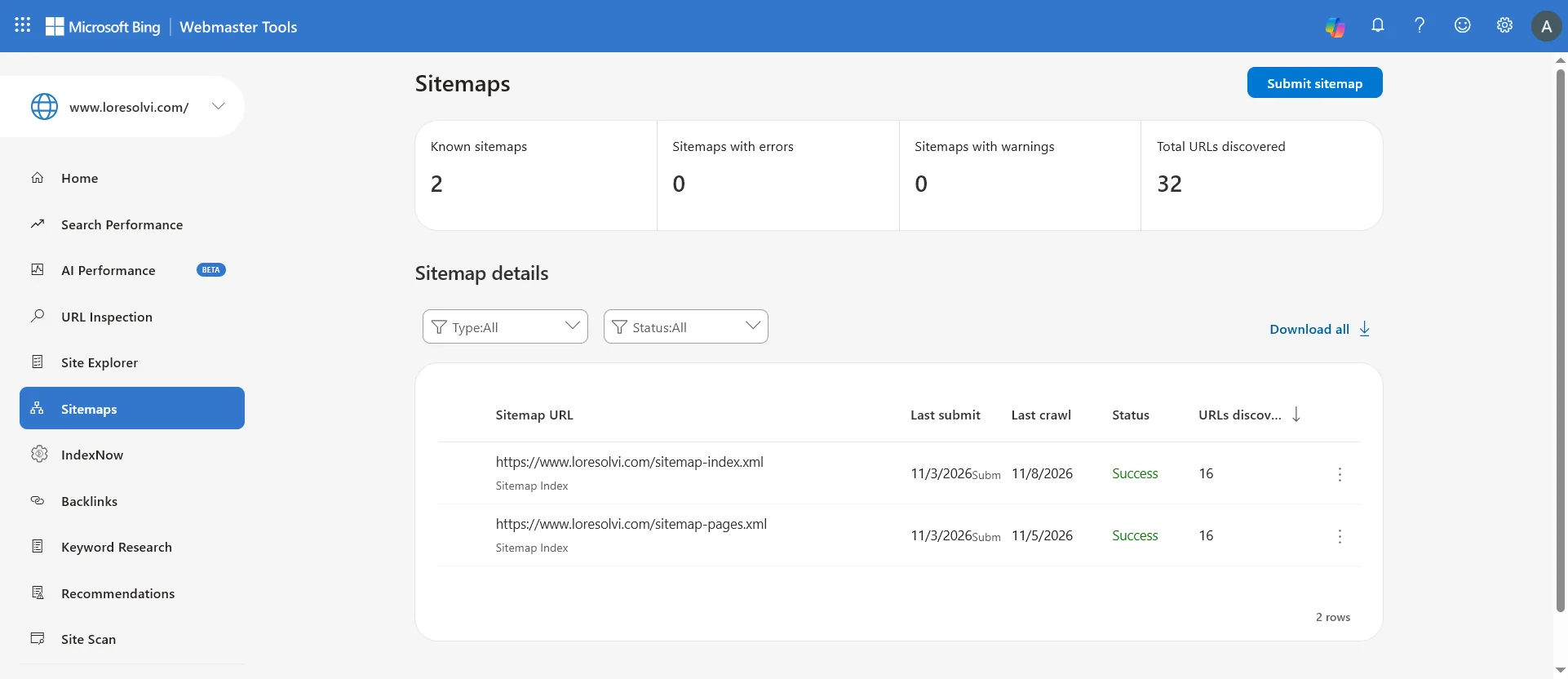
Both of mine show Success and 16 URLs each. One is the current sitemap and the other is the old address from when the blog ran on Blogger, which now redirects to the new one. That’s why Bing counts 32 even though they’re the same pages. If your sitemap shows an error, check that its address opens in the browser before resubmitting it with the Submit sitemap button.
I explain how sitemaps work and what each status means in how to submit a sitemap in Search Console, which is only in Spanish for now. Bing’s statuses are very similar.
What IndexNow is
When you publish a post, Bing doesn’t find out right away. It has to read your sitemap again or find a link to the new page, and that can take days. IndexNow lets you tell it yourself. It’s an open protocol where you send a search engine the list of new or changed URLs, and according to the indexnow.org documentation, participating search engines share those pings with each other. One submission reaches Bing and the rest.
Google isn’t part of IndexNow. For Google the sitemap still does the job, and if you’re in a hurry, you can ask Google to index a page in Search Console.
So that nobody can send pings on your behalf, IndexNow uses a key. You make up a string of letters and numbers and publish it in a text file at the root of your domain, with the key as both the file name and its content. That file is public on purpose. It isn’t a secret, it only proves that whoever sends the ping controls the site.

This blog’s file lives at https://www.loresolvi.com/00462106aab80c96bb522e9b94a3a06c.txt. If you open it, all you’ll see is the key.
How to send the ping
If you use WordPress, Bing has an official plugin that submits URLs on its own when you publish, and some hosting services build it in too. My blog is a static site, so I have a small script that reads the sitemap, picks the URLs it hasn’t sent yet and posts them to the IndexNow endpoint in a single request. I run it every time I publish, right after the page goes live.
The request carries your host, the key, the key file’s address and the list of URLs. According to the official documentation you can send up to 10,000 URLs at once. The search engine replies with a status code that tells you what happened.
- 200 means the URLs were received.
- 202 means they were received but your key is still being validated. That’s normal the first time.
- 400 means the request format is wrong.
- 403 means the key wasn’t found on your domain or doesn’t match.
- 422 shows up when you send URLs from a different domain than yours.
- 429 means you sent too many requests in a row.
The first time I used it, on November 7, IndexNow answered 202 for 18 URLs. Since then it answers 200 every time I publish.
Seeing what you sent in Bing
In the Bing Webmaster Tools menu, open IndexNow. It shows how many URLs Bing received in the last 20 hours and a list of the most recent ones, with the time and the source.
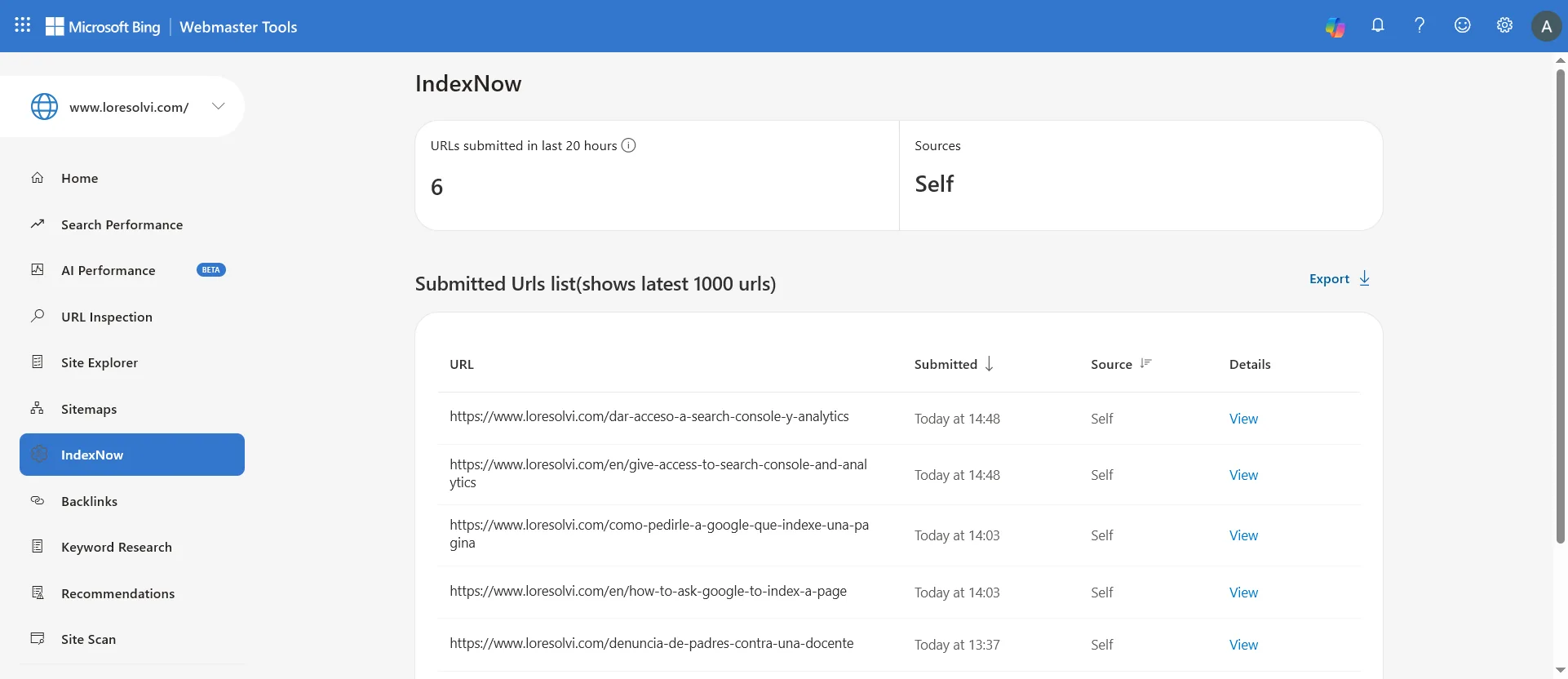
On November 17 it listed the URLs of the posts I published that day, each with the time it was sent. The source says Self because the ping came from my own script, not from a plugin or another service. If you publish and your URL doesn’t show up in that list, the ping didn’t arrive, and the first thing to check is the status code IndexNow returned.
A URL in that list doesn’t mean it’s already in Bing’s results. It means Bing knows it exists and will look at it.
Bing’s API key is something else
Under the Settings gear, at the top right, there’s API access. That key lets a program read your Bing Webmaster Tools data, like clicks, searches and sitemaps. I use it in the same script that reads Search Console every week.
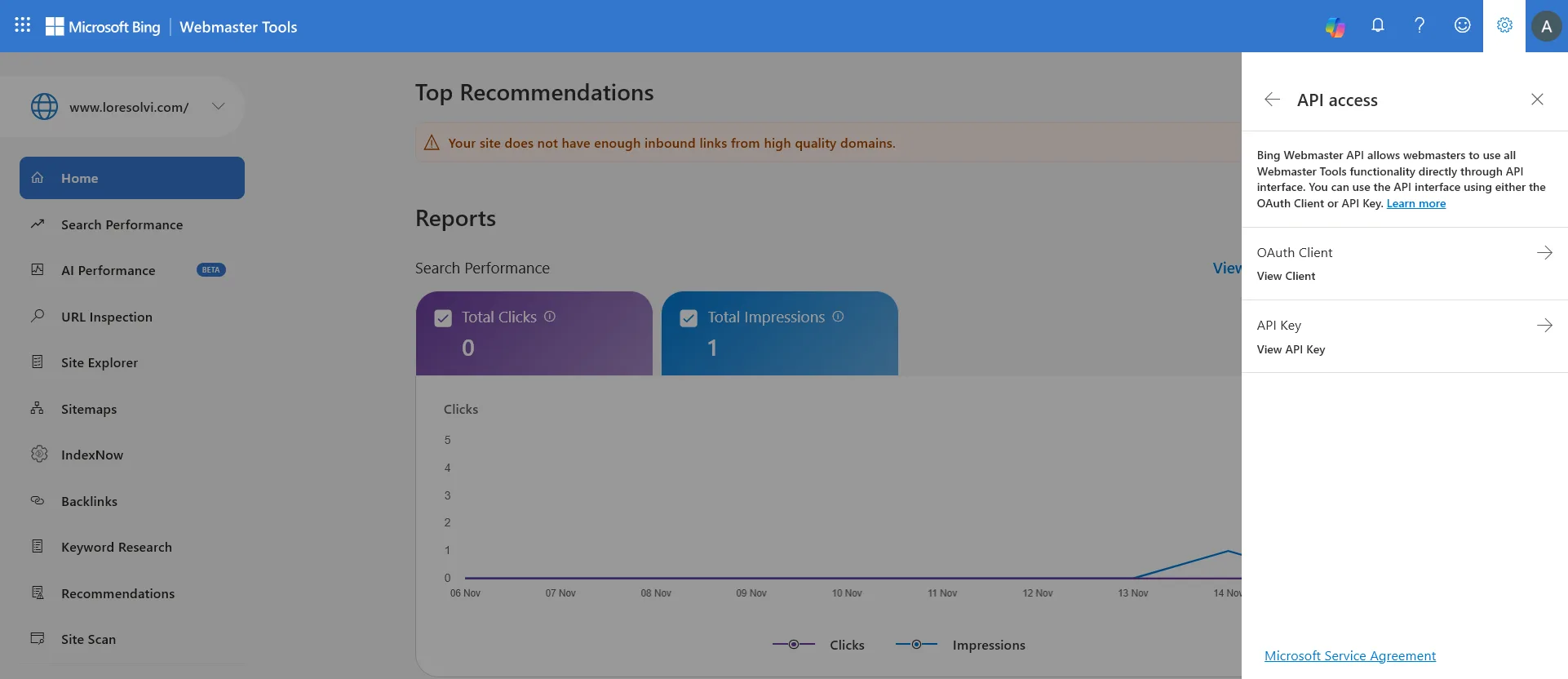
Don’t mix it up with the IndexNow key. The IndexNow key is public and lives on your domain. The API key opens your account, and Bing warns you on the API Key screen not to share it with anyone. Keep it outside your project folder and never push it to GitHub.
What I saw in the first two weeks
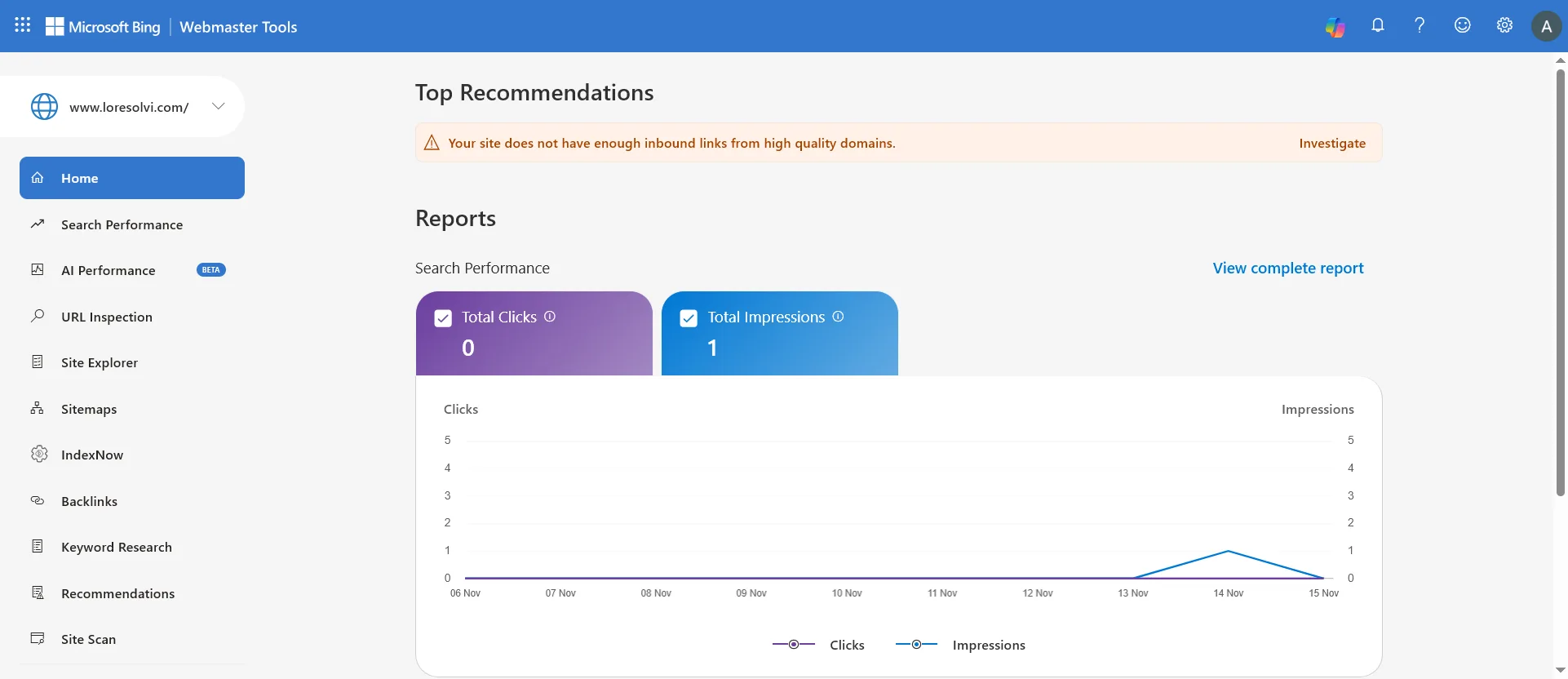
I won’t oversell it. Between November 6 and 15, Bing gave this blog one impression and zero clicks, as you can see in the first screenshot. Bing has read the sitemap and gets every IndexNow ping, but a new site with few links from other pages takes a while to show up in its results. The dashboard says so itself, with a recommendation at the top warning that the site lacks inbound links from quality domains.
Even so, I think it’s worth setting up once and leaving it running. It’s two minutes to import the site and one command after each post.
Before you ask
Do I need a Microsoft account? No. Bing Webmaster Tools also lets you sign in with a Google or Facebook account. I used my Google account, the same one I use for Search Console.
Do I have to pay anything? No. Bing Webmaster Tools and IndexNow are free.
If I import from Google, can Bing change anything in my Search Console? No. Bing only reads the list of your verified sites and their sitemaps to add them. Under Settings, in Google Search Console accounts, you can see which account you connected.
Does IndexNow work for Google? No. Google doesn’t take part in IndexNow. For Google, use your sitemap and the URL Inspection tool in Search Console.
How often can I send pings? Whenever you publish or change a page. You don’t need to send the whole site every day, only the URLs that are new or changed.
Comments
Write a comment